Join a Server — Xbox, PlayStation & Nintendo Switch
This guide shows you how to connect your console to a custom Minecraft Bedrock server with the BedrockConnect app. It works the same way on every console, with an Android phone or an iPhone/iPad.
What you need
- A phone or tablet (Android or iOS) with the BedrockConnect app installed
- Your phone and console must be on the same Wi-Fi network
- An online membership for your console:
- Xbox
- PlayStation
- Nintendo Switch
Xbox Game Pass Essential or higher.
PlayStation Plus.
Nintendo Switch Online.
Do not use a VPN, mobile data, or a strict firewall. Your phone and console need to talk to each other directly over your Wi-Fi.
You don't need to change any DNS settings on your console — not even on the Nintendo Switch. Your console simply finds BedrockConnect as a LAN world.
Step-by-step
1. Open the app
Launch BedrockConnect and go through the welcome screens.
- iPhone / iPad
- Android
During the welcome screens, the app shows an "Allow Local Network" step. Tap Allow Access, then tap OK in the popup from iOS. Without this, BedrockConnect can't reach your console.
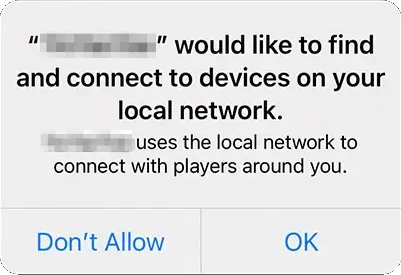
Go to iPhone Settings → scroll down to BedrockConnect → enable Local Network. Then restart the app.
Nothing extra to allow — you're ready to go.
2. Pick or add a server
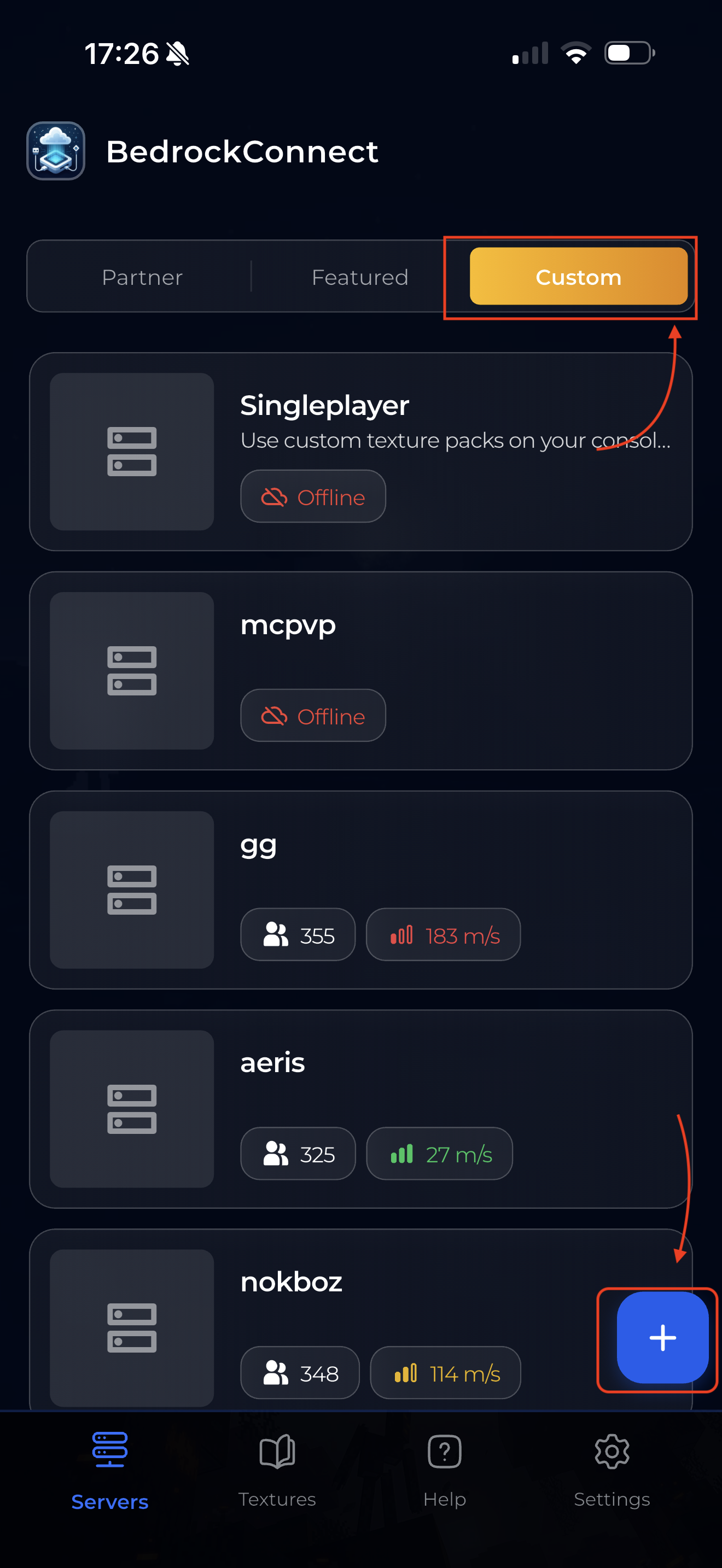
In the Servers tab you can pick a server from the Partner or Featured list, or add your own.
To add your own, tap the "Custom" tab at the top, then tap the blue + button in the bottom right. You'll land on the Add Custom Server screen.
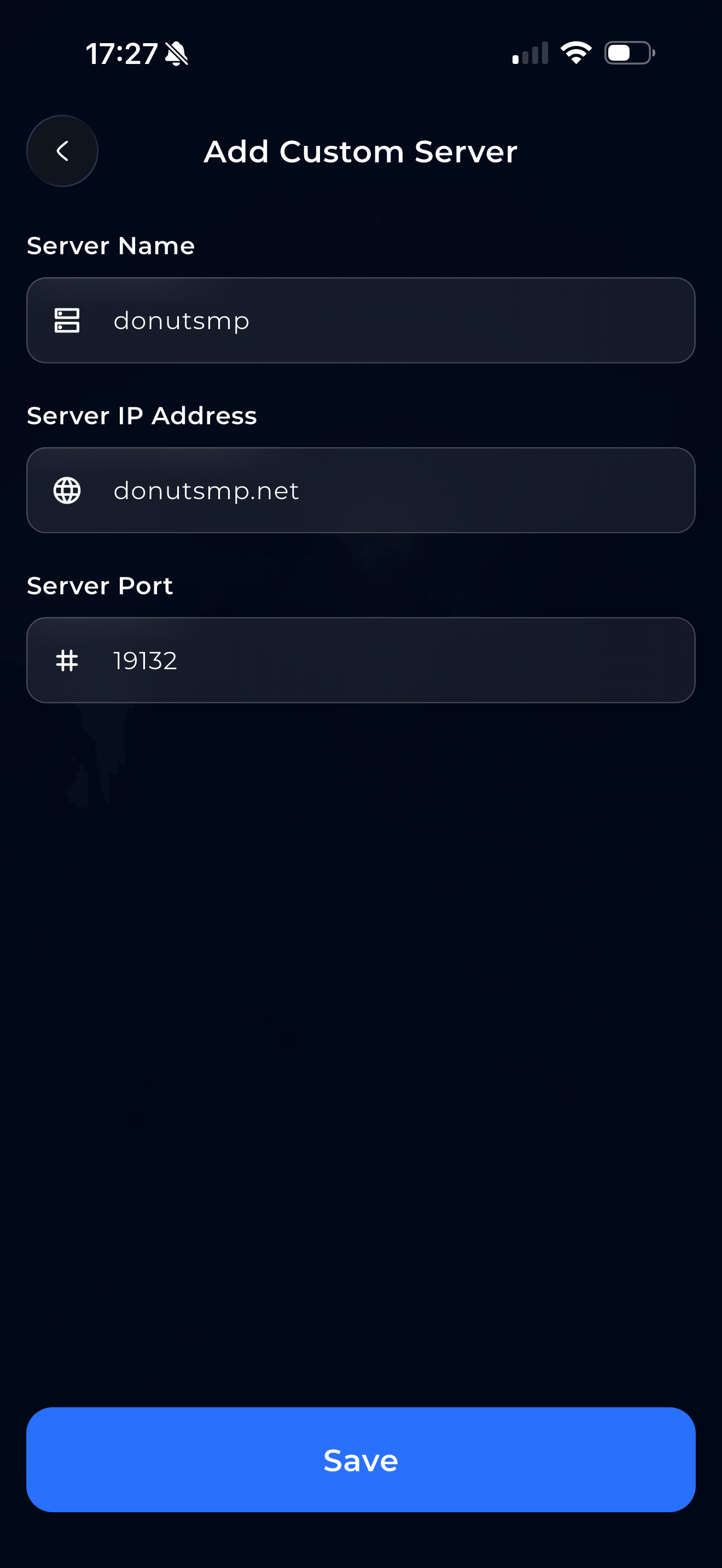
Enter the server's name, IP address, and port (usually 19132), then tap Save. The server must be online and running Minecraft Bedrock Edition.
If you see this message, the server is already in the Partner or Featured list. Just pick it from there instead.
3. Select and start
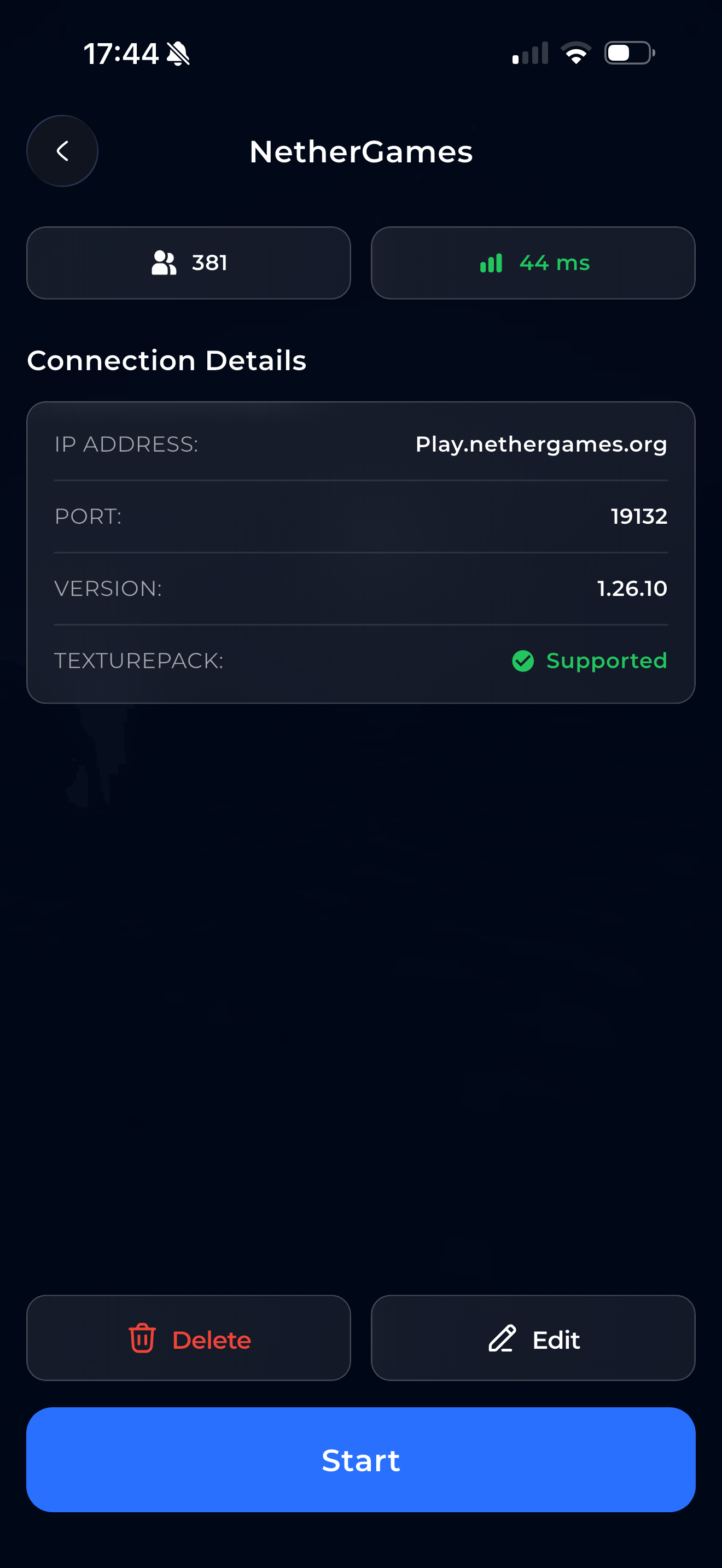
Tap the server. You'll see the server details.
Some Partner and Featured servers have more than one game mode — pick the one you want now, because you can't change it while the server is running. See Game Modes.
Then tap the blue "Start" button at the bottom.
Without Premium, the button says "Ad & Start" — you'll watch a short ad first, then the server starts automatically. Free users may also see an ad when a player first joins the running server. With Premium, there are no ads at all.
Once the server is running, the button turns red and shows "Stop".
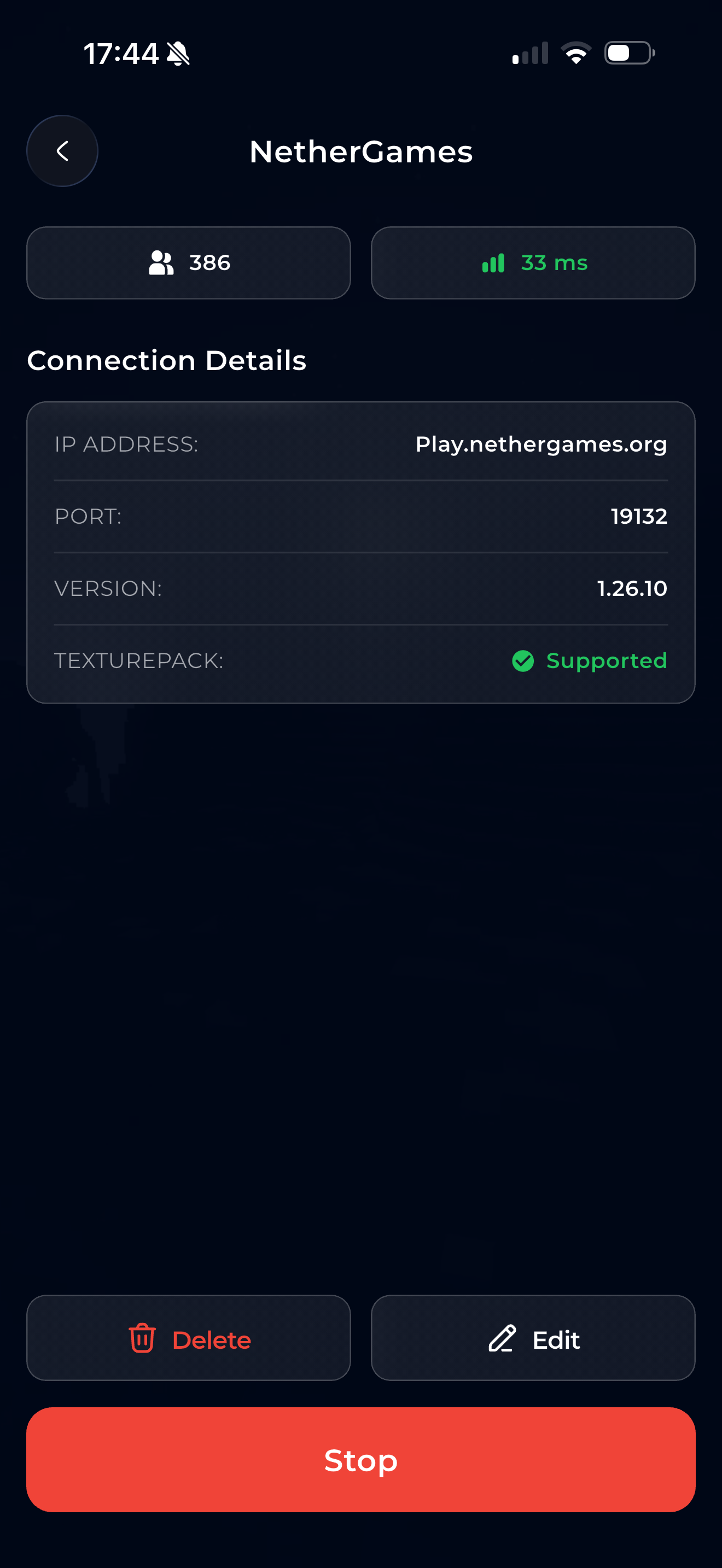
4. Find the server on your console
On your console, open Minecraft and go to the Worlds tab (on some versions it's called the Friends tab). BedrockConnect shows up there as a LAN world. Tap it to join.
The app tells you this too: "The server appears as a LAN World in your Minecraft Worlds tab."
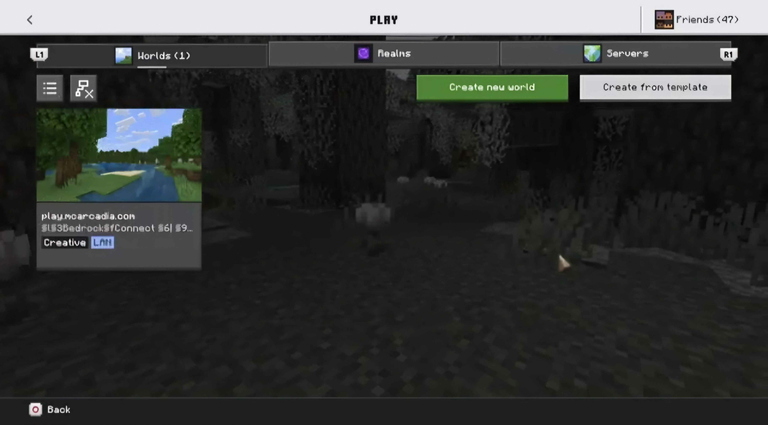
The Switch only finds BedrockConnect over NetherNet, which is the default. If you changed Settings → Network Transport to RakNet, set it back to Nethernet (or Both). See Network Transport.
Check our Troubleshooting Guide.
5. Join
Your console first connects to BedrockConnect, then gets sent on to the real server. This is normal — you're connecting through two servers.
Once you're connected, you can close the app. BedrockConnect only handles the first connection — it isn't a proxy.