Troubleshooting
Quick checklist
Before reading further — try these four things. They fix 90% of all issues:
| Check | How | |
|---|---|---|
| 1 | Phone and console on the same Wi-Fi | No VPN, no mobile data, no guest network |
| 2 | Restart both your phone and console | Full restart — not just sleep mode |
| 3 | Restart the server in the BedrockConnect app | Stop → Start again |
| 4 | Network Transport is set to Nethernet | App Settings tab → Network Transport — more below |
We know it sounds obvious. But a full restart of your phone + console + the server in the app fixes the vast majority of problems. Do this before anything else.
Server doesn't show up in the world list
If the quick checklist didn't help, work through these:
- iOS
- Android
- Network issues
- Switch
Local Network permission
BedrockConnect needs Local Network access to reach your console. The app asks for it during the welcome screens ("Allow Local Network"). If it's off, you'll see the error "Local network access needed".
If you accidentally denied it or never saw the popup:
iPhone Settings → scroll down to BedrockConnect → enable Local Network
You can also get there from the app: Settings tab → Community & Support → Local Network permission. Then restart the app.
Nothing to allow
Android doesn't need any extra permission. Check the quick checklist, the Network issues tab and the Network Transport section below.
Your router might be blocking it
Some routers prevent devices from talking to each other. Check for:
| Setting | Fix |
|---|---|
| AP isolation / Client isolation | Must be off |
| Guest network | These isolate devices — use your main Wi-Fi |
| 2.4 GHz vs. 5 GHz | Some routers treat these as separate networks — put both devices on the same band |
| Corporate / school / hotel Wi-Fi | Almost always blocks local connections — use a personal hotspot or home network |
Nintendo Switch
The Switch finds BedrockConnect as a LAN world, just like Xbox and PlayStation. It works with Android and iOS — you don't need to change any DNS settings.
Make sure Network Transport is Nethernet (the default) or Both. The Switch does not work with RakNet.
If you changed your Switch's DNS settings for BedrockConnect in the past, set them back to Automatic: System Settings → Internet → Internet Settings → your Wi-Fi → Change Settings → DNS Settings → Automatic.
Network Transport
Network Transport is the "language" BedrockConnect uses to talk to your console over Wi-Fi. You find it in the app: Settings tab → Network Transport.
| Option | What it is |
|---|---|
| Nethernet | Minecraft's current network protocol. Default — use this one. Works with Xbox, PlayStation and Nintendo Switch |
| RakNet | The old protocol. On Android with Xbox or PlayStation, use this one for now (see below). It does not work with Nintendo Switch |
| Both | Uses both at the same time. Not needed anymore |
On Android, the newest BedrockConnect version is 4.0.71. In this version Nethernet still has a bug with Xbox and PlayStation: the server doesn't show up, Xbox gets stuck on "Locating server" or PlayStation shows an "InitialConnection" error. Switch Settings → Network Transport to RakNet and start the server again.
Nintendo Switch always needs Nethernet, also on Android.
Keep Nethernet. Since app version 4.0.79 it works without problems. If you have connection problems, update BedrockConnect in the App Store instead of switching to RakNet.
Server still not showing up? Try this:
- Close Minecraft completely on your console — not just the home menu, really quit the game
- Make sure BedrockConnect is up to date and Settings → Network Transport is right: iPhone/iPad → Nethernet, Android with Xbox or PlayStation → RakNet, Nintendo Switch → Nethernet
- Start the server in the app again
- Open Minecraft again and check the Worlds tab
Errors when joining a server
If you get an error message when trying to join a server — like "Unable to connect to world", a disconnect, or a kick — this almost always means the problem is with the server, not with BedrockConnect.
Here's why: by the time you see the error, BedrockConnect has already done its job. It redirected you to the server successfully. The error you're seeing comes from the server itself.
This applies to every error you see after BedrockConnect sends you to a server — connection errors, kicks, "blocked" messages, crashes, missing packs. BedrockConnect is not a proxy and is no longer involved at that point. Only the server owner can fix it.
Try joining another Partner or Featured server through BedrockConnect. If that works, BedrockConnect is fine — the problem is with the specific server you're trying to join.
Got disconnected? Check who sent you there
When you get disconnected, you can check yourself whether the problem comes from the server:
- On the disconnect screen, press Show Details
- Look at the WorldName
| WorldName | What it means |
|---|---|
| BedrockConnect | The disconnect happened while you were still connected to BedrockConnect — ask us on Discord |
| Anything else | You were already on the server. The problem comes directly from the server — BedrockConnect has nothing to do with it. Contact the server's support |
Common causes:
| Cause | Fix |
|---|---|
| "Unknown host" | The IP address or domain you entered is wrong or doesn't exist. Double-check the server's IP and make sure you typed it correctly — this is not a BedrockConnect issue |
| Server is offline | Check the server's Discord or website |
| Server is full | Wait and try again |
| Version mismatch | Update Minecraft — BedrockConnect always supports the latest version |
| Banned on the server | Contact the server's support, not BedrockConnect |
| Server is broken or crashing | Nothing you can do — wait for the server owner to fix it |
BedrockConnect currently supports these Minecraft Bedrock versions:
| Version | Status |
|---|---|
| 1.26.70 | Preview — compatible |
| 1.26.60 | Current stable |
| 1.26.50 / 1.26.51 | Compatible |
| 1.26.45 | Compatible |
| 1.26.40 | Compatible |
| 1.26.30 / 1.26.35 | Compatible (same protocol) |
| 1.26.20 | Old |
| 1.26.10 / 1.26.13 | Old |
| 1.26.0 and older | Old |
Make sure your Minecraft is up to date. Important: not every server supports the latest version — if a server is still on an older version, you'll need to wait until the server updates.
Resource pack problems
| Problem | Solution |
|---|---|
| Pack doesn't load | Clear the server pack cache and rejoin |
| "Incompatible packs" error | Clear cache, restart Minecraft, then rejoin |
| Wrong format | Only .zip / .mcpack for Bedrock Edition. Java packs won't work |
| Lag or crashes | Pack resolution too high for your console — use a lighter pack or subpack |
How to clear the server pack cache
Sometimes Minecraft holds on to an old server pack and your texture pack won't load properly. Clearing the cache forces Minecraft to re-download the pack from BedrockConnect.
- PlayStation
- Xbox & Switch
- Open Minecraft on your PlayStation
- Go to Settings → Storage → Cached Data
- Delete all the server packs listed there
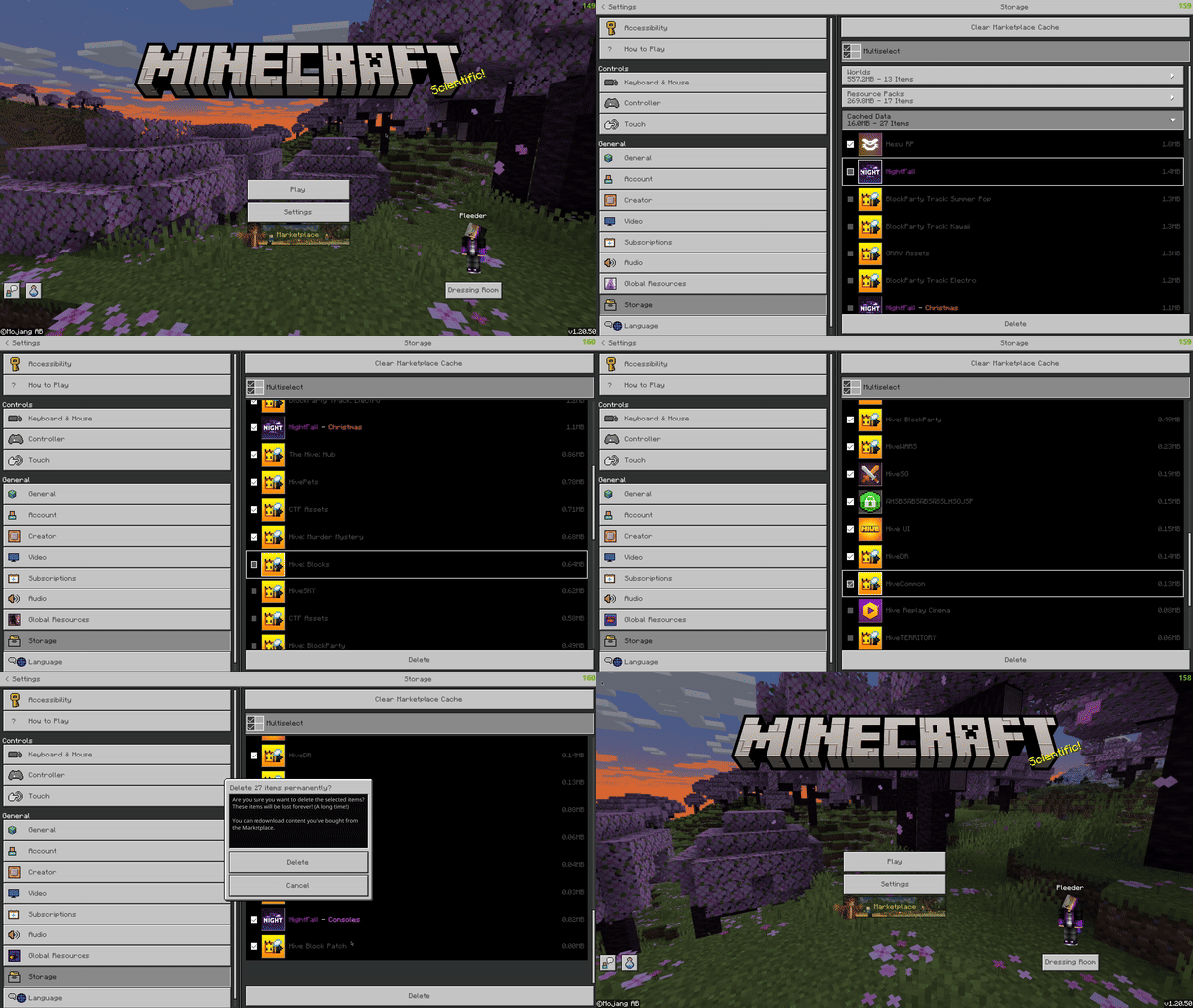
On Xbox and Switch it's much simpler — just close Minecraft completely and reopen it. The server pack cache is cleared automatically when you restart the game.
"Something went wrong"
If you see this error when starting a server:
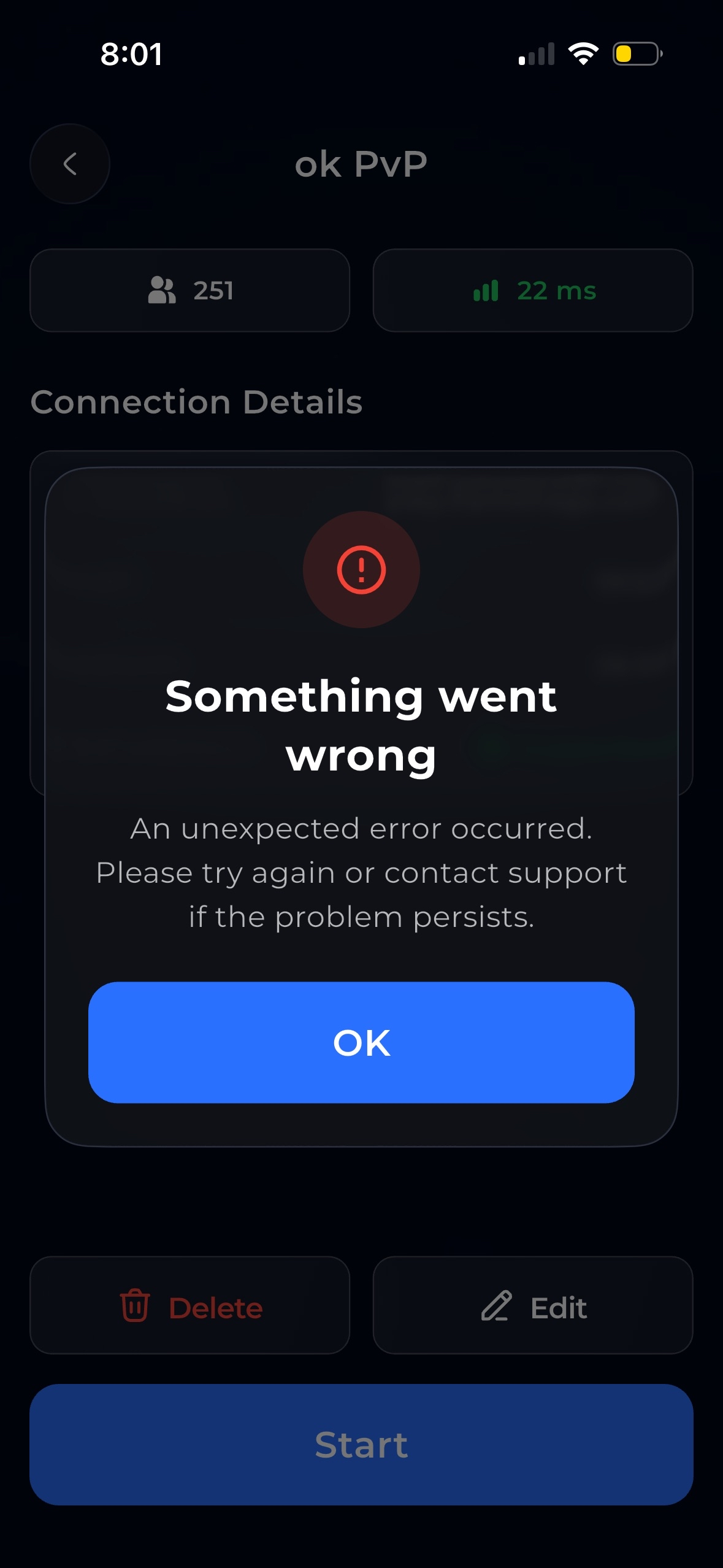
This usually means something is blocking the app from working properly. Try these fixes in order:
- Close the app completely — swipe it away, don't just minimize it. Then reopen and try again.
- Restart your phone — a full restart fixes most cases.
- Close other networking apps — apps like Lunar Client, BedrockTogether, or similar tools interfere with BedrockConnect. They cannot run at the same time. Close them completely before using BedrockConnect.
BedrockConnect does not work while apps like Lunar Client or BedrockTogether are running. Make sure they are fully closed — not just in the background.
"Port already in use"
Another app on your phone is using the port BedrockConnect needs. Close apps like Lunar Client or BedrockTogether completely, then try again. Still not working? Restart your phone.
"Local network access needed" (iOS)
BedrockConnect isn't allowed to use your local network. Turn on Local Network — see the iOS tab above — and try again.
Ad errors
Free users watch a short ad when they tap "Ad & Start". If the ad can't be shown, you'll see one of these:
| Error | What to do |
|---|---|
| "Ad Blocked" | Something on your phone or network is blocking ads — usually an ad blocker or a private DNS. Turn it off (see below) and try again |
| "Ad Choices Needed" | You haven't made your ad choices yet. Tap Retry and make your choices |
| "Ad Load Failed" | The ad couldn't load — see below |
"Ad Load Failed"
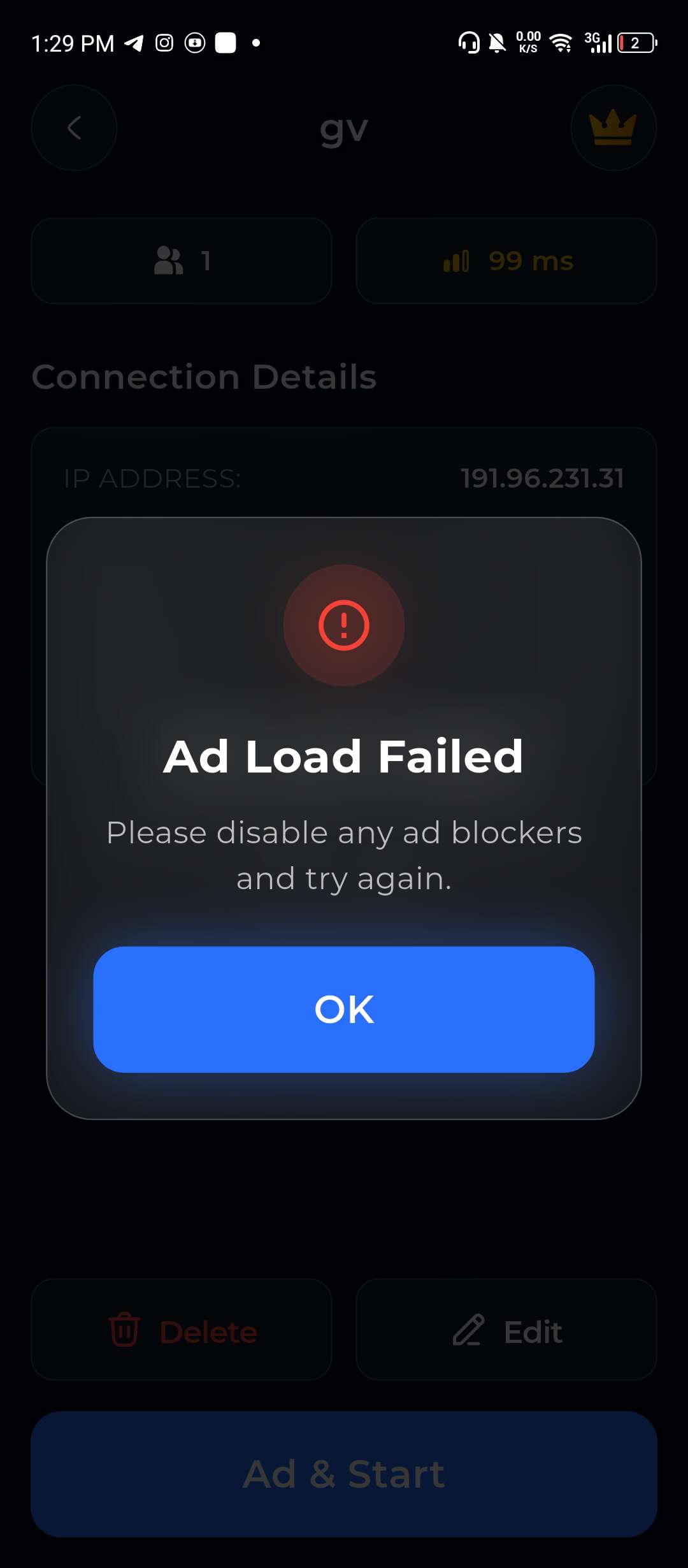
This means the ad couldn't load. The most common causes:
| Cause | Fix |
|---|---|
| Ad blocker active | Disable any ad blocker app or browser-based blocker, then try again |
| VPN running | Turn off your VPN — some VPNs block ad networks |
| Custom DNS (e.g. AdGuard, Pi-hole, NextDNS) | Switch your DNS back to automatic or use 8.8.8.8 (Google) or 1.1.1.1 (Cloudflare) |
| Private DNS on Android | Go to Settings → Network → Private DNS → set to Off or Automatic |
| Firewall or parental controls | Check if something on your network blocks ad traffic |
Settings → Wi-Fi → tap the ⓘ next to your network → Configure DNS → set to Automatic.
Settings → Network & Internet → Private DNS → set to Off. Or: Settings → Wi-Fi → tap your network → Advanced → IP Settings → Static → set DNS to 8.8.8.8.
With Premium, you don't watch ads at all — this error won't happen. If you're seeing this frequently, consider upgrading.
Texture pack errors
| Error | What it means | What to do |
|---|---|---|
| "Too Many Packs" | You reached the maximum number of texture packs | Remove a pack you don't use, then try again |
| "Pack Too Large" | The pack is bigger than the maximum size | Use a smaller pack (lower resolution) |
| "Invalid Pack" | The file isn't a valid Minecraft Bedrock pack | Use a .zip or .mcpack made for Bedrock Edition — Java packs don't work |
| "Server Not Supported" | This server (or game mode) doesn't support texture packs | Tap "Continue without packs" to play without your packs |
"Server Already Listed"
You tried to add a custom server that's already in the Partner or Featured list. Just pick it from there instead.
App won't open or crashes
- Update to the latest version of the app
- Restart your phone
- Reinstall the app — your server list is tied to your account, nothing gets lost
None of this helped?
Join the Discord and describe your issue. Include:
- What console you're using
- What phone you're using (Android/iOS)
- What you've already tried
- Any error messages you see
The team and community are active and can usually help quickly.