Resource Packs
Texture packs are a Premium feature: BedrockConnect Premium lets you use your own texture packs on all supported servers. This page covers everything: how it works, how to set it up, and what to do when something doesn't work.
The basics
- The app accepts .ZIP and .MCPACK files for Minecraft Bedrock Edition. Java packs don't work.
- Only resource packs / texture packs are officially supported. No shaders, modpacks, skin packs, or behavior packs.
- Add-ons and other extensions (like UI mods) may sometimes work, but they are not officially supported and can cause issues. Use them at your own risk.
High-res textures can cause lag or crashes on consoles. If that happens, use a lower-resolution pack or pick a lighter subpack.
Importing and activating packs
Go to the Textures tab in the app. Tap "Import Texture Pack" to add a .zip or .mcpack file. Once imported, toggle it on to activate it.
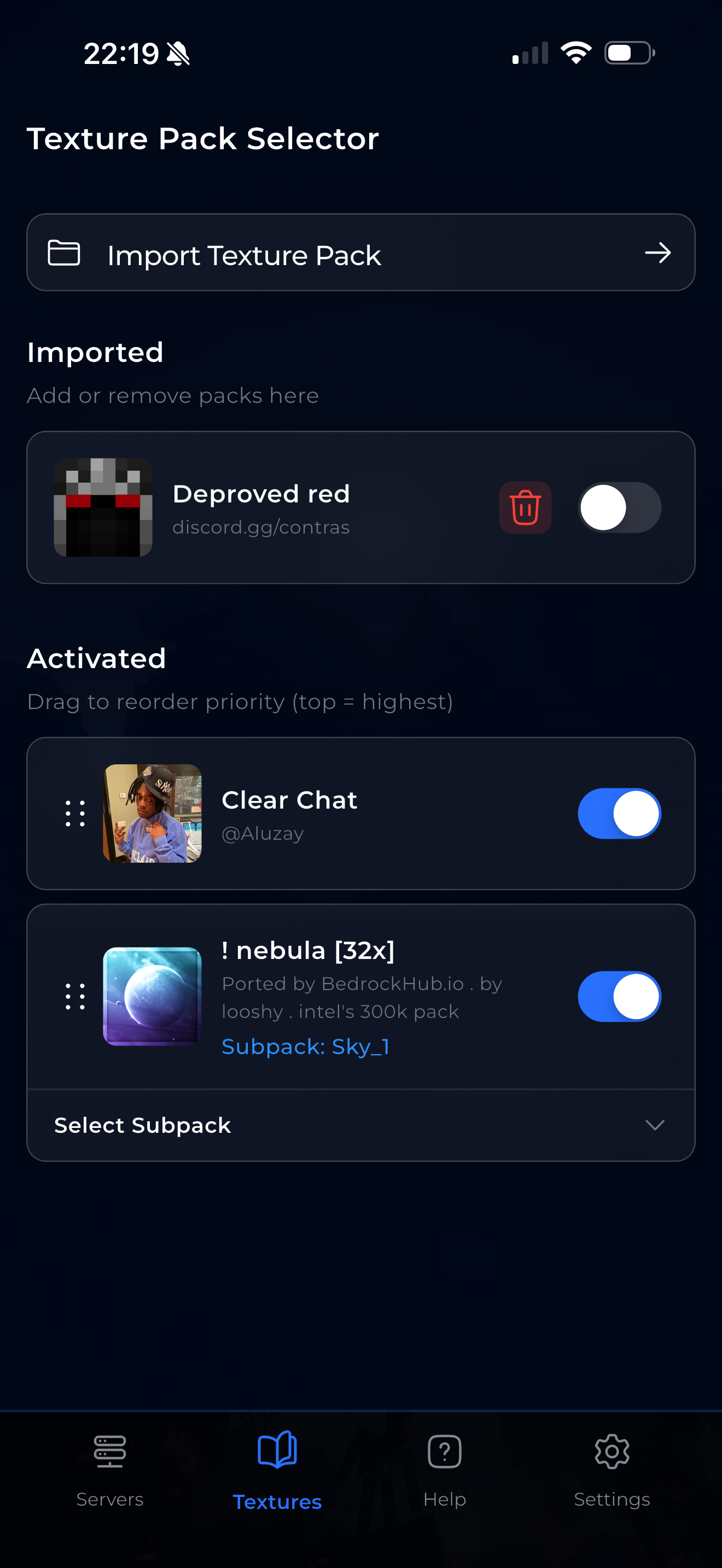
Pack priority — order matters!
You can activate multiple packs at the same time. When two packs change the same texture, the pack higher in the list wins.
Think of it like layers: the top pack has the highest priority. If your sky texture looks wrong, try dragging that pack above the others.
You can drag and drop packs in the "Activated" list to change their order.
If a texture pack doesn't seem to do anything, it might be lower priority than another active pack that changes the same textures. Try moving it to the top of the list, or deactivate other packs to test.
Subpacks
Some packs include subpacks — multiple options bundled in one file. For example: a sky pack with 4 different sky styles, or a pack with high-res and low-res versions.
Tap "Select Subpack" under the pack to expand the options and pick the one you want.
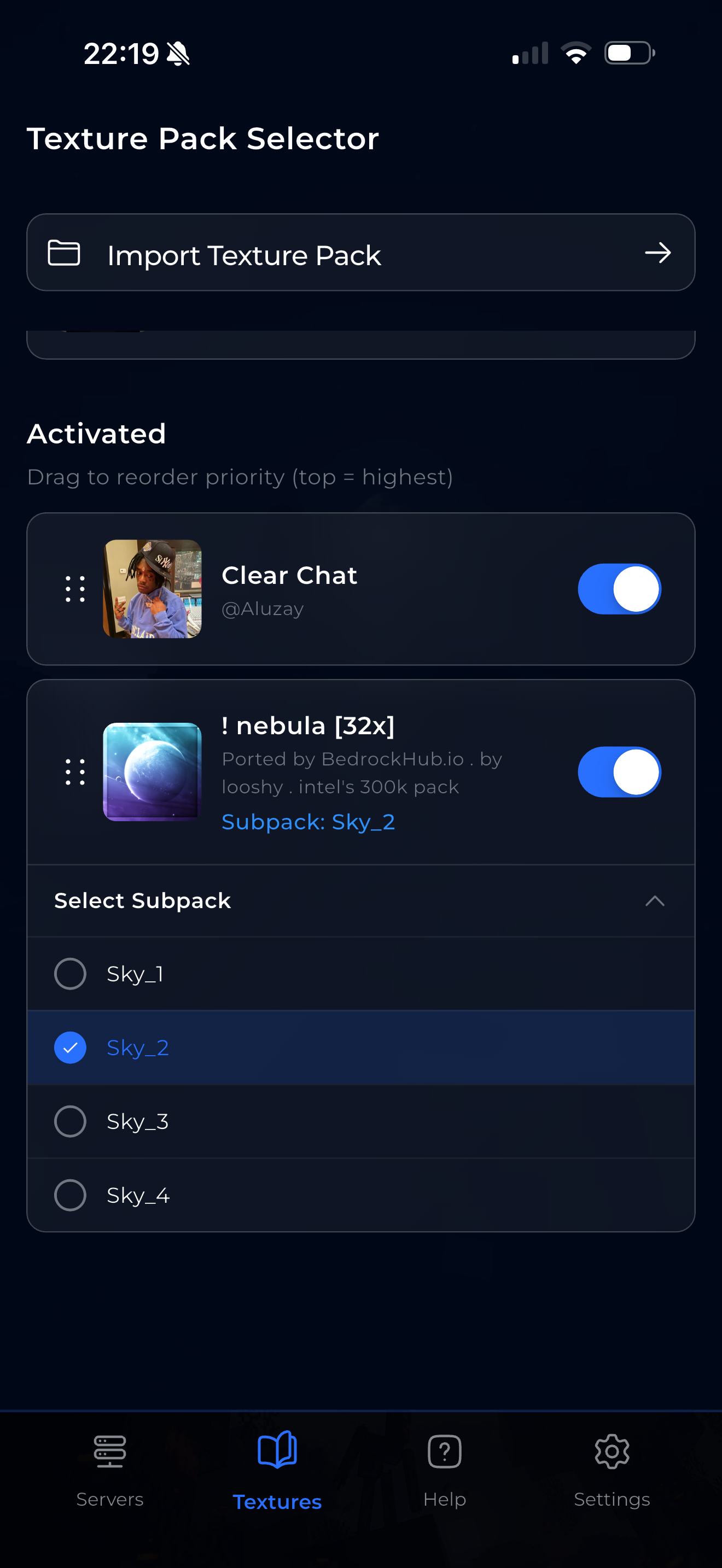
Setup by console
The first two steps are the same everywhere: import a pack and activate it in the Textures tab. After that it depends on your console:
- Xbox
- PlayStation
- Nintendo Switch
3. Start a server
In the BedrockConnect app, start a supported server.
4. Join
On your Xbox, join the server. BedrockConnect automatically replaces the server's pack with yours — no extra steps needed.
3. Start a server
In the BedrockConnect app, start a supported server.
4. Join
On your PlayStation, join the server. BedrockConnect automatically replaces the server's pack with yours.
3. Start a server
In the BedrockConnect app (Android or iOS), start a supported server. Keep Network Transport on Nethernet (the default) — the Switch doesn't work with RakNet.
4. Join
On your Switch, join the server from the Worlds tab (it shows up as a LAN world). BedrockConnect automatically replaces the server's pack with yours.
BedrockConnect replaces the server pack automatically, so normally you don't need to do anything. But if your pack doesn't load, try clearing the cache:
- PlayStation: Minecraft → Settings → Storage → Cached Data → delete server packs
- Xbox & Switch: Just close Minecraft completely and reopen it — the cache clears automatically
For more details, see the cache clearing guide.
Texture pack support status
When you open a server in the app, you'll see a TEXTUREPACK label at the bottom of the server details. There are three statuses:



| Status | What it means |
|---|---|
| Supported | Texture packs work on this server. You're good to go. |
| Not supported | Texture packs will not work on this server. This usually means the server's anti-bot system blocks our service, or the server simply doesn't have a server pack. |
| Unknown | We haven't been able to confirm whether packs work. It might work — try it and see. |
Some Partner and Featured servers have several game modes, and each game mode has its own texture packs. The TEXTUREPACK status always shows the game mode you picked — so it can change when you pick a different mode.
If a server isn't supported, starting it with active packs shows "Server Not Supported" — tap "Continue without packs" to play without them.
BedrockConnect uses automated systems to check and fetch server packs. Some servers block this with anti-bot protection, which prevents us from connecting. Other servers simply don't have a server pack at all. There's nothing we can do about either case — it's up to the server operator.
If you're a server owner, check our Server Owner Guide to learn how to make your server compatible.